

Quick Answer: A centroid file for PCB assembly, also called a pick-and-place or XY file, identifies component positions, rotations and board sides. Supply reference designators, coordinate units and a documented origin with the placement data. Confirm the assembler’s format and component filters; five named columns, a particular column order or a single combined file are not universal requirements.
Key takeaways:
- Agree the schema, units, origin, side and rotation convention with the assembler.
- Compare fitted reference designators after applying the variant/DNP and placement filters.
- Prefer a native CAD export; ordinary fabrication Gerbers do not always preserve component identity.
- Check the released file in a suitable viewer and retain the verified revision.
Table of Contents
- What Is a Centroid File and Why Does Your PCB Assembler Need It?
- What Data Fields Must a Centroid File Contain?
- Centroid File vs BOM vs Gerber: How the Three Assembly Files Work Together?
- How to Generate a Centroid File from KiCad, Altium, and Eagle?
- What Are the Most Common Centroid File Errors That Cause Assembly Failures?
- How to Validate Your Centroid File Before Submitting to Your Manufacturer?
- What Should You Do If You Lost or Cannot Generate a Centroid File?
- What Centroid File Format Does Your Assembly House Actually Need?
- FAQ
Missing placement data creates a specific engineering question: can the assembler identify each fitted component and its orientation from the released files? This guide explains the data to export, how to reconcile it with the BOM and board drawing, and what can be recovered when the native PCB design is unavailable. Start with a consistent PCB assembly quote files package.
What Is a Centroid File and Why Does Your PCB Assembler Need It?
A centroid file links a component’s reference designator to a location, rotation and board side. The XY position may describe a footprint origin, a calculated center or another documented reference. The assembler maps that information to its machine program; the source file is not itself a complete placement-machine recipe.
Pick-and-place file, XY file, component placement list (CPL) and position file are common names for this data. Keep the name used by your CAD tool, but state its units, origin, side convention and assembly revision so the recipient can interpret it.
Fiducials help register the physical board to the machine coordinate system. They do not replace the component-to-designator mapping, rotation data or polarity checks. Keep the board outline, reference marks and placement data in the same documented coordinate relationship.
Different origins do not automatically make a file unusable: a known offset can be transformed during CAM preparation. An undocumented offset is the problem. Verify the alignment on the released data instead of assuming identical-looking origin labels prove agreement.
Centroid Terminology and Functions
| Name | What it describes | Handoff check |
|---|---|---|
| Pick-and-place / XY / position file | Component locations, orientation and side | Map fields to the receiving system |
| CPL | Component placement list | Reconcile fitted reference designators |
| Fiducials | Board registration features | Identify their locations and coordinate reference |
| Assembly drawing | Installation and orientation instructions | Match the released variant and revision |
For production handoff, agree which placement information is supplied by the CAD export and which conversions or corrections will be made during programming.
What Data Fields Must a Centroid File Contain?
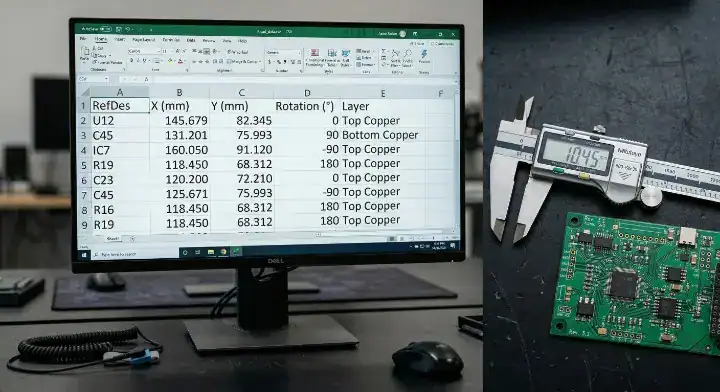
A typical placement record contains RefDes, X, Y, rotation and side. Side may instead be unambiguously identified by separate top and bottom files. The recipient may also need footprint, value, part number or other columns. Ask for its accepted schema before removing fields from a native export.
Treat column names and units as part of the interface. A file can contain all the expected information and still be imported incorrectly if a parser reads millimeters as inches, swaps X and Y, or assumes a different zero-angle convention.
CSV format illustration: the row below reuses the example coordinates from the field table. It shows a possible schema, not a native KiCad header or a board to manufacture. Optional fields such as Footprint, Value, MPN or DNP belong in the agreed importer mapping.
RefDes,X_mm,Y_mm,Rotation_deg,Side
R12,14.25,8.50,90,Top
Handling “Do Not Place” (DNP) Components
Apply the assembly variant and DNP policy consistently across the BOM, placement export and drawing. CAD tools can filter parts differently. Altium’s ActiveBOM documentation distinguishes flat and grouped BOM views, including multiple designators on one row. A BOM row count therefore need not equal the number of placement records.
Do not assume the exported coordinate is the physical package-body center. Altium’s pick-and-place center explanation describes a center derived from outer pad locations and cautions that it can differ from the centroid of an asymmetric footprint. Confirm which reference the assembler expects before changing the library or applying offsets.
Required Centroid Data Fields
| Information | Meaning | Example from this guide | Check |
|---|---|---|---|
| RefDes | Component identity | R12 | Unique within the agreed board/panel context |
| X and Y | Position relative to the documented origin | 14.25 mm; 8.50 mm | Units and coordinate reference are explicit |
| Rotation | Orientation under the agreed convention | 90° | Verify zero orientation and side/view |
| Side | Board face | Top or Bottom | Column or clearly labeled separate files |
| Additional fields | Footprint, value, MPN, variant/DNP status as requested | Use the native project data | Do not discard fields the recipient needs |
Label the board side explicitly in a column or in separate file names and handoff notes. A bottom-side file without a side column can be meaningful; an ambiguously named file is not a reliable instruction.
Centroid File vs BOM vs Gerber: How the Three Assembly Files Work Together?
The BOM for PCB assembly identifies the parts and their fitted designators; fabrication files describe board geometry; placement data locates the selected components. Assembly drawings and part documentation add orientation and installation details that may not be clear from copper or silkscreen alone.
Release those files as a coherent revision and variant. If a change affects placement, footprint geometry or population, identify which outputs need regeneration and remove obsolete files from the delivery package.
Engineering check: compare sets of fitted reference designators, not spreadsheet row totals. Expand grouped BOM designators, apply the agreed DNP and SMT/THT scope, and compare that expected set with the placement set. Investigate missing, unexpected and duplicate references separately. A matching total can still hide one missing part and one duplicate.
The Three-Way Cross Check
Check geometry in a common coordinate system using the board outline and recognizable footprints. Then verify polarity against the native design, assembly drawing and package pinout. Silkscreen is useful evidence, but it may omit or obscure a polarity mark.
For panels, document whether the files describe a single board or the complete panel. Include the instance identifiers, offsets and rotations needed to associate each placement with the correct board; repeated designators can be valid only when their panel context is unambiguous.
For quote-stage preparation, use the free DFM check to flag missing files and clarify the intended build revision before programming.
The Core Assembly Files Comparison
| File | Primary role | Information to cross-check | Boundary |
|---|---|---|---|
| Fabrication Gerbers and drills | Board layers, outline and holes | Geometry and revision | Ordinary fabrication layers may lack component identity |
| BOM | Parts and fitted designators | MPN, quantity, variant/DNP | Grouped rows are not individual placements |
| Placement file | Component position, rotation and side | Fitted reference set and geometry | Requires schema and coordinate interpretation |
| Assembly drawing | Orientation and installation | Pin/polarity and special instructions | Supports review; not a replacement for required structured data |
Export from the approved design revision and record the CAD version, assembly variant and relevant output settings with the released package.
How to Generate a Centroid File from KiCad, Altium, and Eagle?

Use the native CAD export when it is available. The steps below are explicitly for KiCad 9.0; check the documentation for your installed version when menu labels or options differ. Choose the assembler’s requested output format and population scope rather than treating defaults as an approval.
In KiCad 9.0, open the PCB Editor and choose File → Fabrication Outputs → Component Placement (.pos, .gbr)…. Select CSV if requested and declare units. Set the required SMD, through-hole and DNP filters. Enable the drill/place origin only when it is the agreed reference. Select a combined front/back file or separate files as required. Generate the output, then inspect both the data and the board overlay. These options are documented in KiCad’s component placement export manual.
Exporting from Major CAD Tools
For repeatable exports, KiCad 9.0’s CLI documentation provides pcb export pos with format, unit, side, origin and population-filter options. The sample below selects millimeters and the drill/place origin; use it only when those choices match the handoff agreement.
kicad-cli pcb export pos --format csv --units mm --side both --use-drill-file-origin -o placement.csv board.kicad_pcbIn Altium Designer, use the Pick and Place output in an Output Job or File → Assembly Outputs. The official assembly-data documentation distinguishes Center X/Y, Ref X/Y and Pad X/Y, with CSV/text output and configurable filters. Check the selected reference, variant and bottom-side options instead of substituting one coordinate column for another.
CAD Tool Export Reference
| Tool / version | Documented route | Output choice | Setting to verify |
|---|---|---|---|
| KiCad 9.0 | File → Fabrication Outputs → Component Placement | ASCII, CSV or Gerber X3 placement | Units, origin, filters and front/back policy |
| Altium Designer | Output Job or File → Assembly Outputs | CSV or text | Center/Ref/Pad coordinate columns, filters and variant |
| EAGLE / Fusion | Release-specific ULP procedure; Autodesk documents mount-smd-tht | Inspect the ULP output | Assembly variant and SMD/THT separation |
| Other CAD releases | Use the installed version’s placement-export documentation | Recipient’s accepted format | Reference point, units, population and side convention |
For EAGLE/Fusion workflows, use the procedure for the installed release. Autodesk’s support procedure identifies the mount-smd-tht ULP and its SMD/THT file option. Do not assume that a separate “mountsmd-bottom.ulp” is required by every EAGLE version.
What Are the Most Common Centroid File Errors That Cause Assembly Failures?
A rotation number has meaning only with its zero orientation, rotation direction and side/view convention. Library definitions and importer assumptions can differ. Verify a polarized component on each populated side before applying a blanket angle correction.
Keep three references separate: the CAD footprint’s orientation, the component package’s pin or polarity definition, and the orientation supplied in its packaging. A standard name alone does not establish how a particular export or machine importer maps those references.
The Bottom Side Rotation Trap
Bottom-side transforms must be documented. KiCad exposes a bottom-layer X-negation option, while Altium documents a Y-flip option for specified bottom-side reference columns. These are exporter choices, not interchangeable universal rules. Supply the original export and explain any agreed transform to avoid mirroring the same data twice.
Validation example: if all top-side parts align but bottom-side parts do not, first check the selected side/view convention and transform. If only one diode is rotated, check that footprint and its pin mapping before changing every bottom-side row. Re-import the corrected data and confirm placement and polarity against the approved drawing.
Troubleshooting Component Rotation
| Observation | Check first | Possible action | Verify afterwards |
|---|---|---|---|
| Many parts have the same offset | Origin and board/panel reference | Agree a transform or re-export | Overlay known features in one coordinate system |
| One polarized part is rotated | Footprint zero orientation and package pinout | Review that mapping | Confirm pin/polarity against drawing |
| Bottom-side parts do not align | View convention and enabled mirror/negation options | Apply one documented transform | Check a bottom-side polarized component |
| Missing or unexpected references | Variant, DNP and export filters | Reconcile sets and resolve exceptions | No unexplained duplicate or missing RefDes |
Prefer a traceable re-export or a documented, reviewed CAM correction. If coordinates or rotations are edited manually, retain the original file and record the exact change and approval; spreadsheet editing does not validate the result.
How to Validate Your Centroid File Before Submitting to Your Manufacturer?
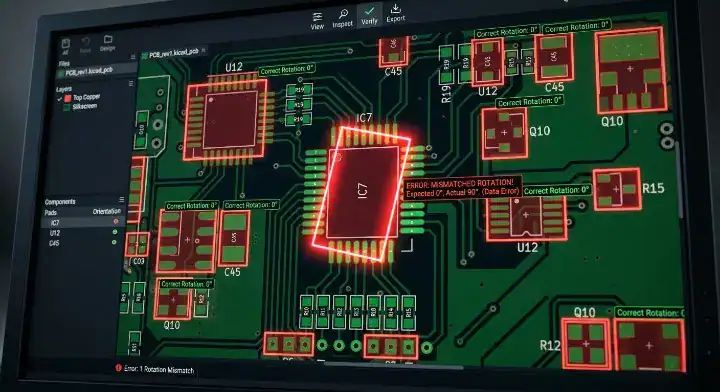
Validate the placement file by designator identity, population policy and geometry. Time spent on that review depends on the design; a quick row-count check cannot establish that every component is correctly located or oriented.
First verify that the file opens with the intended delimiter and numeric units. Then check unique references, missing coordinates, valid side labels and the selected variant. Treat DNP parts, non-placement BOM items and panel instances as deliberate categories rather than unexplained count differences.
The Placement Validation Audit
A coordinate outside a simple width/height range is not automatically wrong. Page, auxiliary and panel origins can produce offsets or negative values. Compare the transformed placement against the actual board outline and known features before deciding that a coordinate is out of bounds.
Use a CAD or CAM viewer that can interpret the exported placement format and render an overlay. Check positions, side and polarity for representative parts, especially asymmetric footprints. A rectangle overlay alone cannot prove the correct part or pin orientation.
Send unresolved reference, coordinate and rotation questions with the Gerber file guide package and assembly drawing. Mark which file is authoritative so that an engineering correction does not silently become a new design revision.
Pre-Submission Validation Checklist
| Validation | How to check | Release evidence |
|---|---|---|
| Reference set | Expand grouped designators; compare after population filters | Missing, unexpected and duplicate lists resolved |
| Coordinates | Declare units/origin and overlay on the board | Known features align after the agreed transform |
| Rotation and side | Check representative polarized and asymmetric parts | Pin mapping and side convention confirmed |
| Revision and variant | Compare placement, BOM, drawing and fabrication package | One approved, consistent release |
| Panel context | Identify each instance and its transform | Repeated references map to the correct board |
What Should You Do If You Lost or Cannot Generate a Centroid File?
If the placement file is missing, first recover the native PCB project and regenerate it from the approved revision. A bare-board Gerber set and BOM may support CAM reconstruction, but they may not uniquely identify every component center, designator, side or rotation. Confirm the remaining evidence and review effort before quoting recovery.
Do not equate “Gerber” with “no component data.” Ucamco’s Gerber X3 description explains that X3 can carry component information. Check whether the supplied package actually includes component layers; ordinary copper, mask and legend layers alone are a different recovery case.
Recovery Options and Evidence
If reconstruction is necessary, supply the BOM with designators, assembly drawings, part datasheets and any older verified placement files. Ask the engineer to list unresolved mappings and obtain design approval before release. Measuring a populated board or estimating pad centers is not a substitute for that review.
A recovery record should retain the source files, the inferred mappings, the checks performed and the approved output revision. Resolve ambiguous polarity or reference assignments explicitly before using the result for a first article.
Lost Centroid File Recovery Options
| Available data | Preferred route | What still needs checking | Recovery boundary |
|---|---|---|---|
| Native PCB project | Re-export from the approved revision | Variant, library reference and output settings | Most direct source; still requires verification |
| Gerber X3 component layers | Confirm the recipient can read the supplied data | Component identity, position and orientation actually included | Different from bare-board-only Gerbers |
| Ordinary Gerbers plus BOM/drawing | Review CAM reconstruction feasibility | Designator mapping, center/reference and polarity | Do not promise complete automatic recovery |
| Photos or physical board only | Review evidence and scope before estimating coordinates | Hidden parts, identity and geometry | May be insufficient; obtain design approval |
Keep the native design and the released placement, BOM, fabrication and assembly files together in version control or a controlled document archive. Archive the export settings so the package can be regenerated.
What Centroid File Format Does Your Assembly House Actually Need?

CSV and plain-text placement files are common handoff formats, but acceptance depends on the receiving system. Renaming a file extension or removing its headers does not make its coordinates, side convention or schema compatible.
Ask the assembler for its accepted format and the mapping of required fields. It may convert a CAD export into equipment-specific programming data; confirm what information must remain in the source file for that conversion.
Use PDFs and images as supporting assembly documentation, not as a substitute for structured coordinate data when the agreed workflow requires a placement file. KiCad ASCII .pos, CSV and supported Gerber X3 placement outputs serve different interfaces; identify the format clearly.
Acceptable Centroid Formats
| Format | Use | Recipient confirmation | Caution |
|---|---|---|---|
| CSV | Structured text handoff | Header mapping, delimiter and units | Extension alone does not guarantee import |
| ASCII / tab-separated text | Native placement output | Field order and side convention | Preserve numeric and reference strings |
| KiCad .pos | KiCad placement export | Actual format/options selected | Inspect contents rather than only the suffix |
| Gerber X3 placement | Component-data handoff | Supported component-layer interpretation | Verify component data was actually exported |
| XLSX / PDF / images | Requested spreadsheet or supporting drawing | Whether structured conversion is required | Supporting documents do not automatically supply machine coordinates |
Preserve the original export before converting it. After a CSV edit, recheck delimiters, decimal notation, reference strings and numeric values so that spreadsheet formatting has not silently altered the handoff data.
For a QueenEMS assembly-data review, send the BOM, fabrication files, placement file and assembly drawing from the same revision, plus the CAD version, origin/units, variant/DNP policy and unresolved orientation questions. If placement data is missing, identify the available native or Gerber X3 data first so recovery feasibility and remaining checks can be discussed. Contact us with the package before programming.
Written by the QueenEMS Engineering Team
FAQ
1. Can the factory build my board if I only send Gerber files and a BOM? Sometimes, after an engineering review. Ordinary fabrication layers may not contain enough information to reconstruct every placement reliably. Native CAD data or Gerber X3 component layers can improve the handoff. Confirm feasibility, missing information and any recovery terms for the actual package.
2. Do I need to include through-hole components in my centroid file? Follow the agreed assembly scope. Some exports and workflows include non-SMD components; others filter them out. Keep that choice consistent with the BOM and drawing. Do not assume every through-hole component is hand-inserted or that its placement data is always irrelevant.
3. What should I do if top and bottom components export into separate files? Supply the clearly labeled files if the assembler accepts that format. Document units, origin and side/rotation convention. Merge them only when requested, and preserve the original exports so that the transformation can be checked.
Upload your files today · Free DFM check before production · Ship worldwide
Get your PCB prototypes in as fast as 24 hours. We handle FR4, Rogers, and hybrid boards up to 40 layers in volume production, with advanced builds subject to engineering review — free prototypes for 2–4 layer FR-4 boards, no minimum order.
Just upload your Gerber + BOM — we source every part, assemble, and inspect (AOI + X‑Ray) so you don't have to chase suppliers. Boards ship in as fast as 24 hours.